mzML Conversion
INTEGRATOR reads MS data in the open mzML format. MSConvert, part of the ProteoWizard suite, converts vendor raw files — SCIEX .wiff, Waters .raw folders, Thermo Fisher .raw files, Agilent .d folders — to mzML. Conversion runs on Windows only.
Install or upgrade to a recent version of ProteoWizard on a Windows computer. A recent version ensures support for current vendor formats.
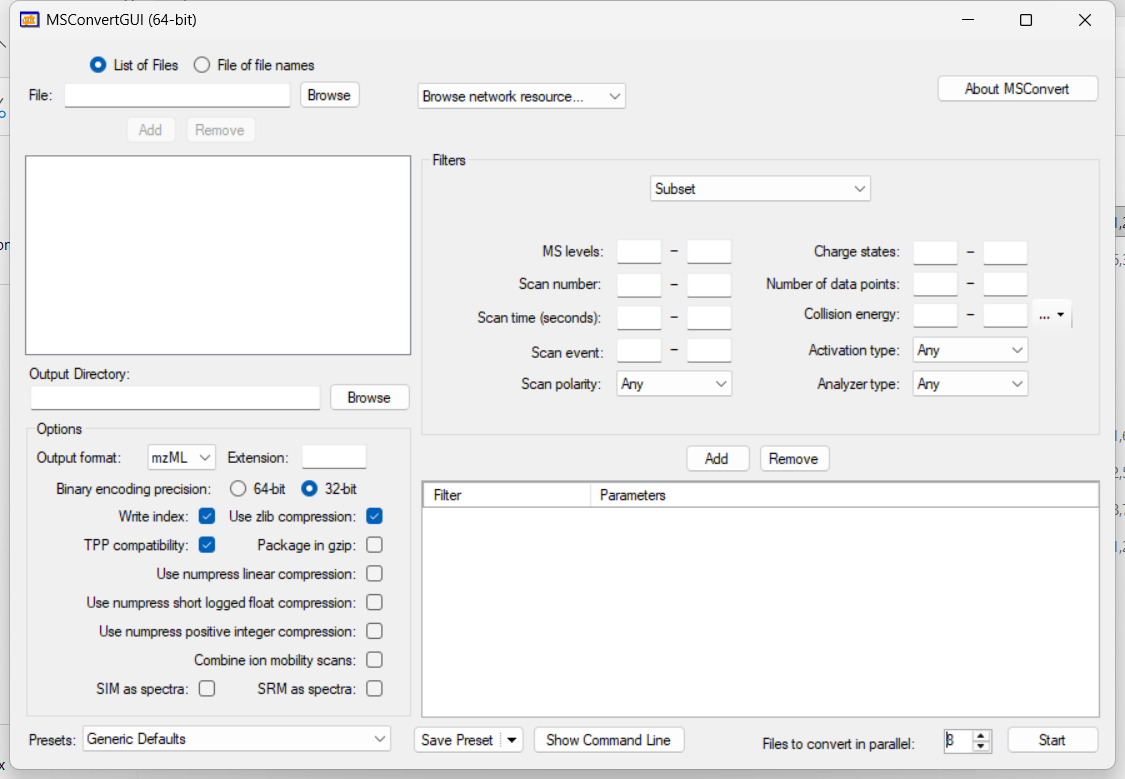
Launch MSConvertGUI from the Start menu, or by right-clicking the raw files and selecting MSConvertGUI.
Click Browse to select the raw files to convert. For SCIEX data, keep the
.wiffand.wiff.scanfiles together in the same folder.Set the options: Output format → mzML, Binary encoding precision → 32-bit, and enable Write index. To speed up large batches, raise Files to convert in parallel to the number of available CPU cores.
Click Start, then copy the resulting mzML files into the
mzMLsubfolder of your MRMhub project.
See also
- Install INTEGRATOR — download the standalone executable.
- Processing Workflow — process your mzML files.